Customize Logo
Logo
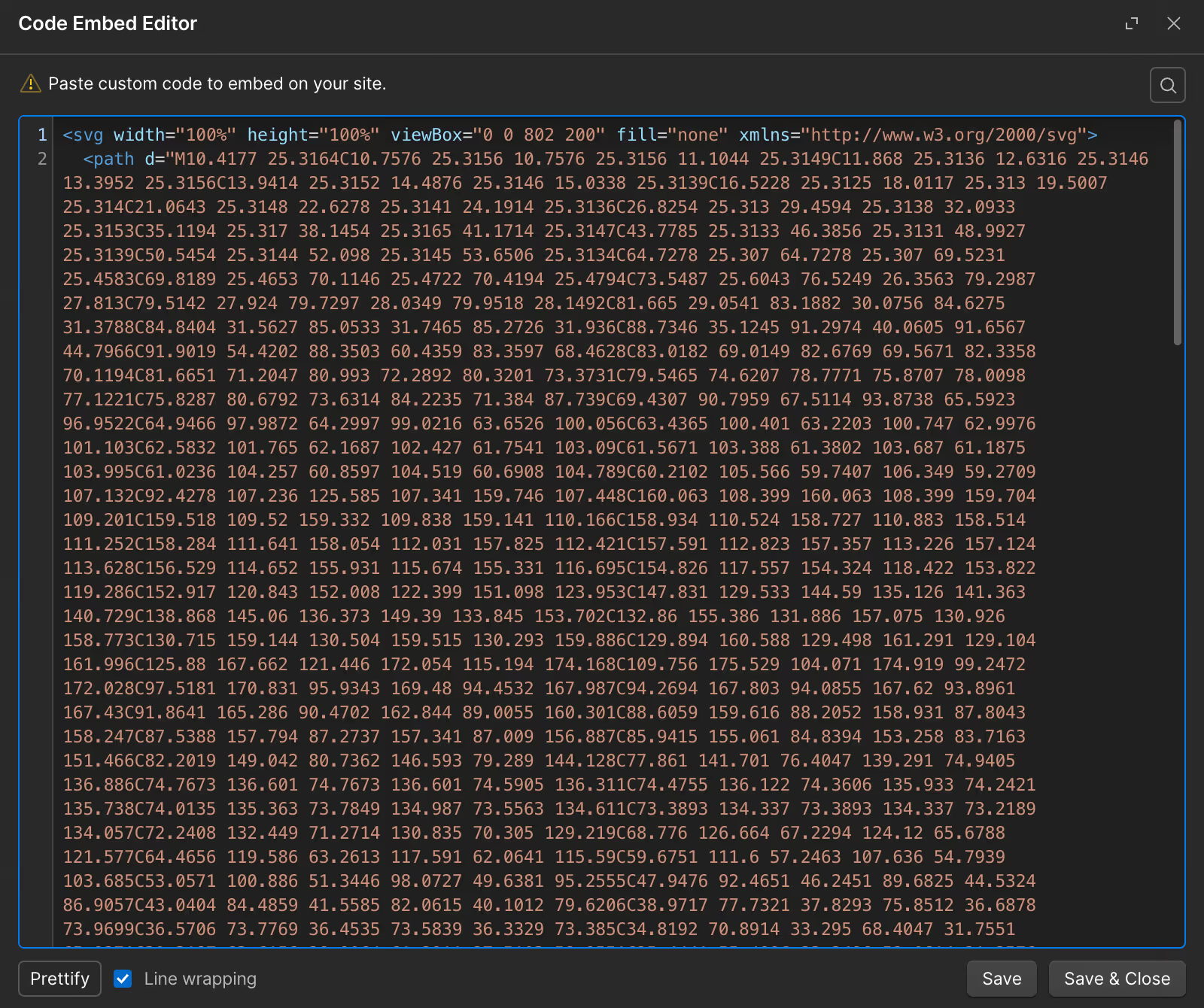
If you have an SVG version of your logo, here's how to update it:
- Edit the Logo SVGcomponent above
- Open the code editor
- Copy the SVG code from Figma
- Paste and replace the SVG code
- Set width="100%" height="100%"
- Set fill="currentColor"
Primary Font
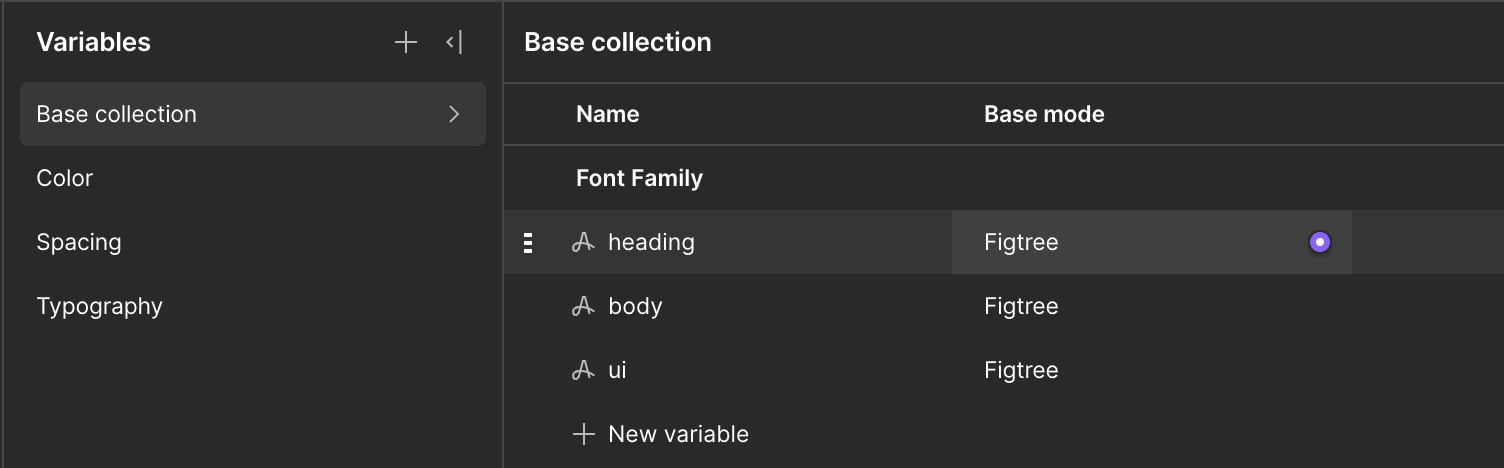
Figtree
- To customize both fonts, go to the Variables panel (V)
- Select the default tab
- Choose from any existing fonts or upload your own fonts
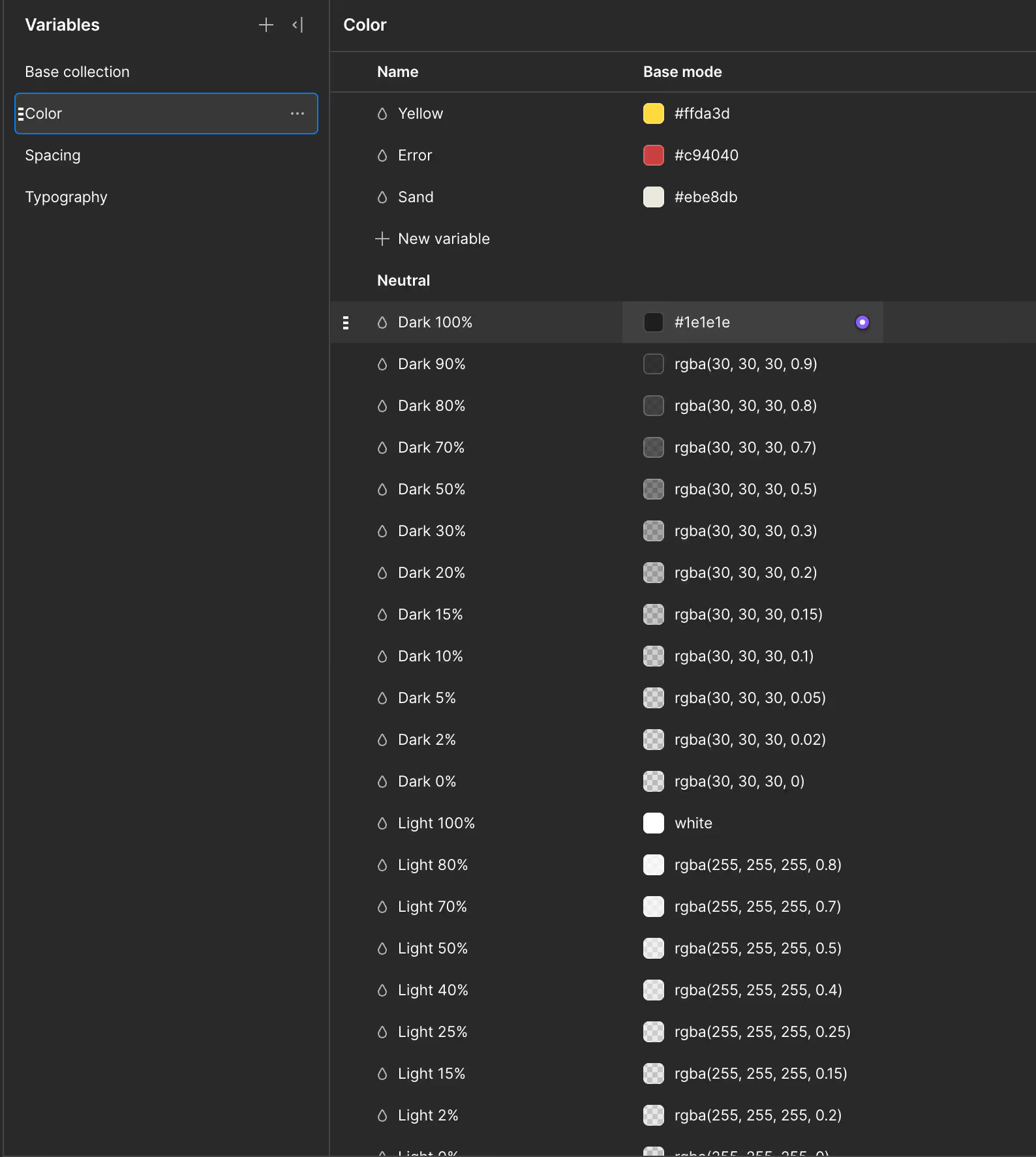
The Color tab consists of all set of color available for use in the project.
- To customize color, go to the Variables panel (V)
- The default tab is where you can customize the Accent and Base
color - You can add more color sets in the Color tab
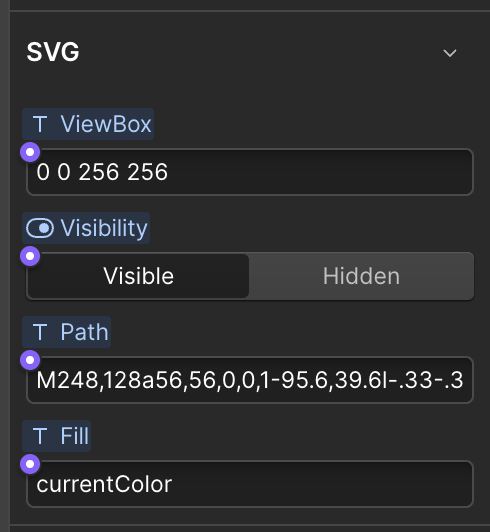
In the SVG Icon Properties, you can customize:
- SVGViewBox
- SVGPath
- SVGFill
To copy SVG Properties from Figma:
- In Figma, select the Icon
- Right click >Copy/Paste as >Copy as SVG
- While in Figma, paste into a text block
- Copy & paste each individual properties you'd like to replace
Customize Font
Font
If you have an SVG version of your logo, here's how to update it:
- Edit the Logo SVGcomponent above
- Open the code editor
- Copy the SVG code from Figma
- Paste and replace the SVG code
- Set width="100%" height="100%"
- Set fill="currentColor"
Primary Font
Figtree
- To customize both fonts, go to the Variables panel (V)
- Select the default tab
- Choose from any existing fonts or upload your own fonts
The Color tab consists of all set of color available for use in the project.
- To customize color, go to the Variables panel (V)
- The default tab is where you can customize the Accent and Base
color - You can add more color sets in the Color tab
In the SVG Icon Properties, you can customize:
- SVGViewBox
- SVGPath
- SVGFill
To copy SVG Properties from Figma:
- In Figma, select the Icon
- Right click >Copy/Paste as >Copy as SVG
- While in Figma, paste into a text block
- Copy & paste each individual properties you'd like to replace
Customize Color
Color
If you have an SVG version of your logo, here's how to update it:
- Edit the Logo SVGcomponent above
- Open the code editor
- Copy the SVG code from Figma
- Paste and replace the SVG code
- Set width="100%" height="100%"
- Set fill="currentColor"
Primary Font
Figtree
- To customize both fonts, go to the Variables panel (V)
- Select the default tab
- Choose from any existing fonts or upload your own fonts
The Color tab consists of all set of color available for use in the project.
- To customize color, go to the Variables panel (V)
- The default tab is where you can customize the Accent and Base
color - You can add more color sets in the Color tab
In the SVG Icon Properties, you can customize:
- SVGViewBox
- SVGPath
- SVGFill
To copy SVG Properties from Figma:
- In Figma, select the Icon
- Right click >Copy/Paste as >Copy as SVG
- While in Figma, paste into a text block
- Copy & paste each individual properties you'd like to replace
Customize SVG Icons
SVG Icon Properties
If you have an SVG version of your logo, here's how to update it:
- Edit the Logo SVGcomponent above
- Open the code editor
- Copy the SVG code from Figma
- Paste and replace the SVG code
- Set width="100%" height="100%"
- Set fill="currentColor"
Primary Font
Figtree
- To customize both fonts, go to the Variables panel (V)
- Select the default tab
- Choose from any existing fonts or upload your own fonts
The Color tab consists of all set of color available for use in the project.
- To customize color, go to the Variables panel (V)
- The default tab is where you can customize the Accent and Base
color - You can add more color sets in the Color tab
In the SVG Icon Properties, you can customize:
- SVGViewBox
- SVGPath
- SVGFill
To copy SVG Properties from Figma:
- In Figma, select the Icon
- Right click >Copy/Paste as >Copy as SVG
- While in Figma, paste into a text block
- Copy & paste each individual properties you'd like to replace